An API is a counter, not a kitchen
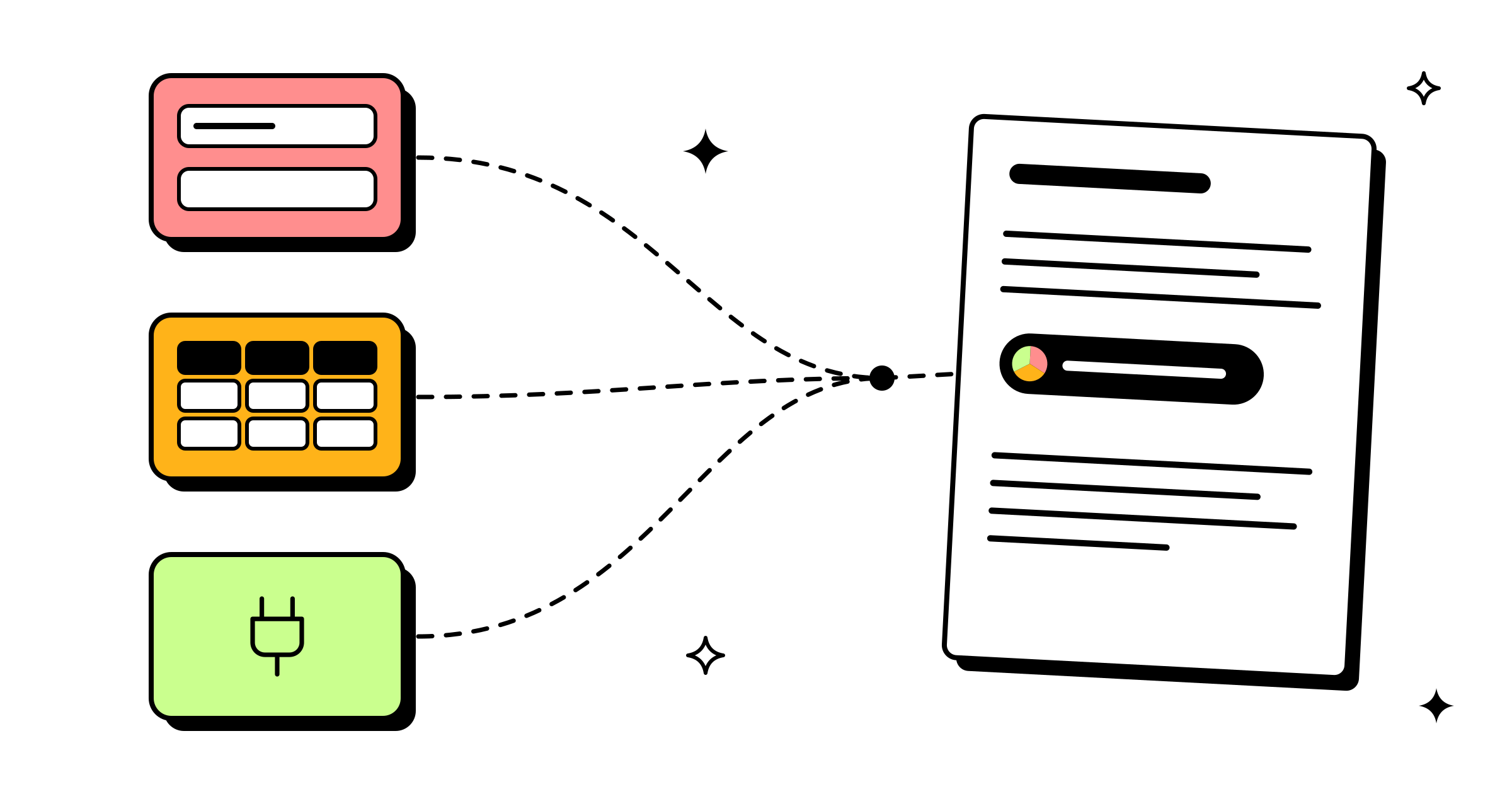
Your CRM, your accounting tool and your project tracker all hold data your documents need. You can't walk into their databases, and you shouldn't want to. What they give you instead is a counter: an API, short for application programming interface. You ask for something in a fixed format, and you get it back in a fixed format.
That's the whole idea. No screens, no clicking, no copy and paste. One program asks, another answers.
In Drafta, the program asking is an Integration. Set it up once, and every placeholder that uses it fills itself with live data each time you generate. This article covers what you need to know to set one up with confidence: how a call works, what the parts of a URL mean, where headers and query parameters go, and how to read the JSON that comes back. It ends with a real Integration you can build in five minutes.
How an API call works
Every API call is one round trip in three steps.
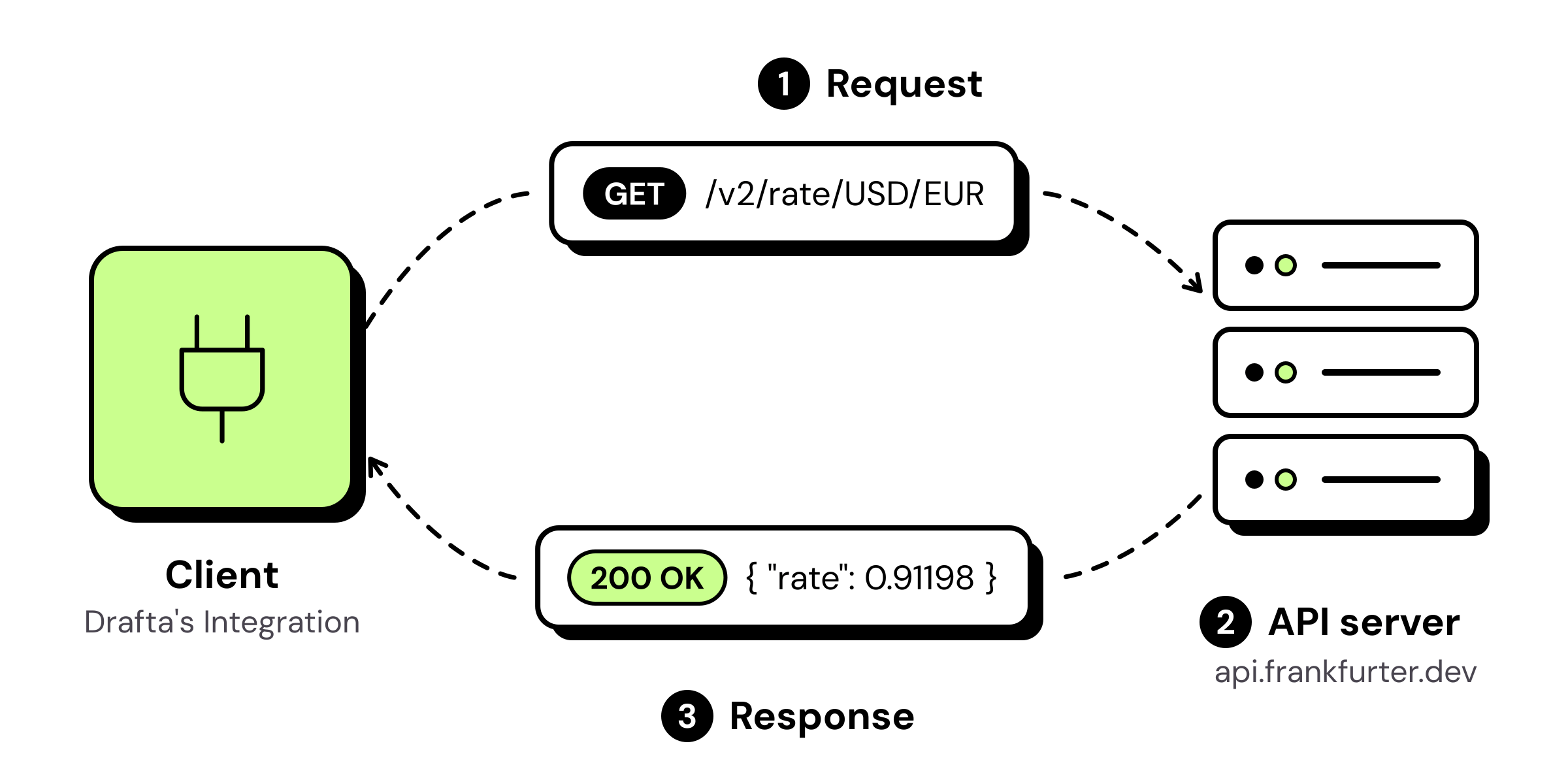
- The request. The client, here a Drafta Integration, sends a message to an address. It says what it wants (the URL), how it's asking (the method), and who's asking (the headers).
- The server does the work. It checks the request, looks up the data and builds an answer. You never see this part, and you don't need to.
- The response. The server answers with a status code and a body. The status code says how it went. The body holds the data, usually as JSON.
Status codes are three-digit numbers, and the first digit tells you most of the story:
| Code | Means | What to check |
|---|---|---|
| 200 | OK, here's your data | Nothing. This is the one you want |
| 400 | The request is malformed | A misspelled parameter, or a body that isn't valid JSON |
| 401 | Not authenticated | The API key is missing, wrong or expired |
| 403 | Authenticated, but not allowed | The key works, but its permissions don't cover this data |
| 404 | Nothing at this address | A typo in the URL, or a resource that doesn't exist |
| 422 | Understood, but can't process | A parameter the API doesn't accept, or a value in the wrong format |
| 429 | Too many requests | You've hit the provider's rate limit. Wait, then try again |
| 5xx | The server failed | Not your fault. Try again later |
Drafta shows you the code when a call fails: The API answered HTTP 401 (Unauthorized) tells you exactly where to look.
Anatomy of an API URL
An API URL reads left to right, from the general to the specific.
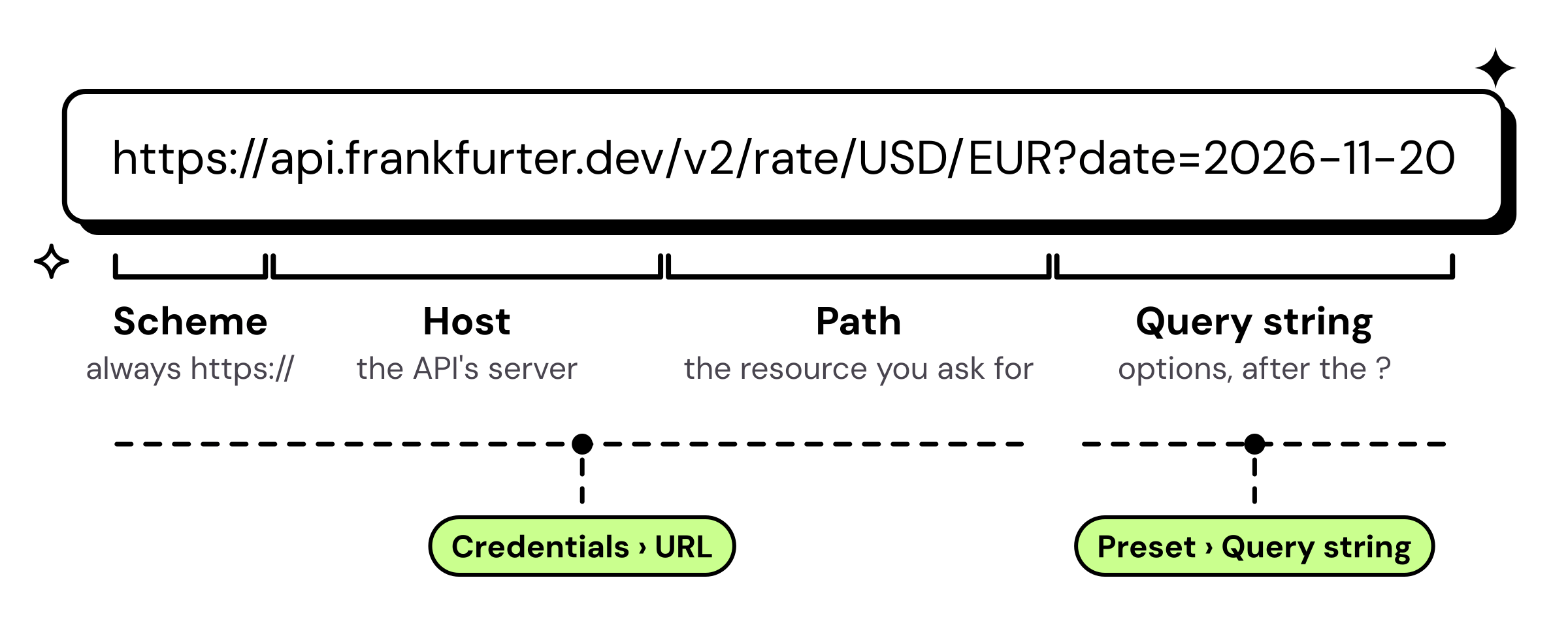
- Scheme,
https://: how to connect. Drafta only callshttps://addresses, so everything travels encrypted. - Host,
api.frankfurter.dev: which server to ask. APIs often live on their ownapi.subdomain. - Path,
/v2/rate/USD/EUR: which resource you want. Many APIs start the path with a version (/v1,/v2), so they can change without breaking you. A path can carry values too: hereUSDandEURname the currency pair. - Query string,
?date=2026-11-20: options for the request. It starts at?, and each option is aname=valuepair, joined with&when there are several.
In Drafta, the first three parts go in the Integration's URL field. The query string goes into a preset, as name and value rows, so one Integration can ask the same question several ways. Drafta writes the ? and the & for you.
GET or POST
The URL says where. The method says what kind of request. Drafta supports the two you'll meet most:
- GET reads data. Everything it needs fits in the URL and the headers. Most data APIs are GET.
- POST sends data along with the request, in a body, usually because the question is too big or too structured for a URL. Search endpoints often work this way. In Drafta, a POST preset has a Body field where you write that JSON.
Check the API's documentation for the method. Asking the right address with the wrong method usually gets you a 404 or a 405.
Headers and query parameters
Both carry extra information with a request. They live in different places, and that decides what each one is for.
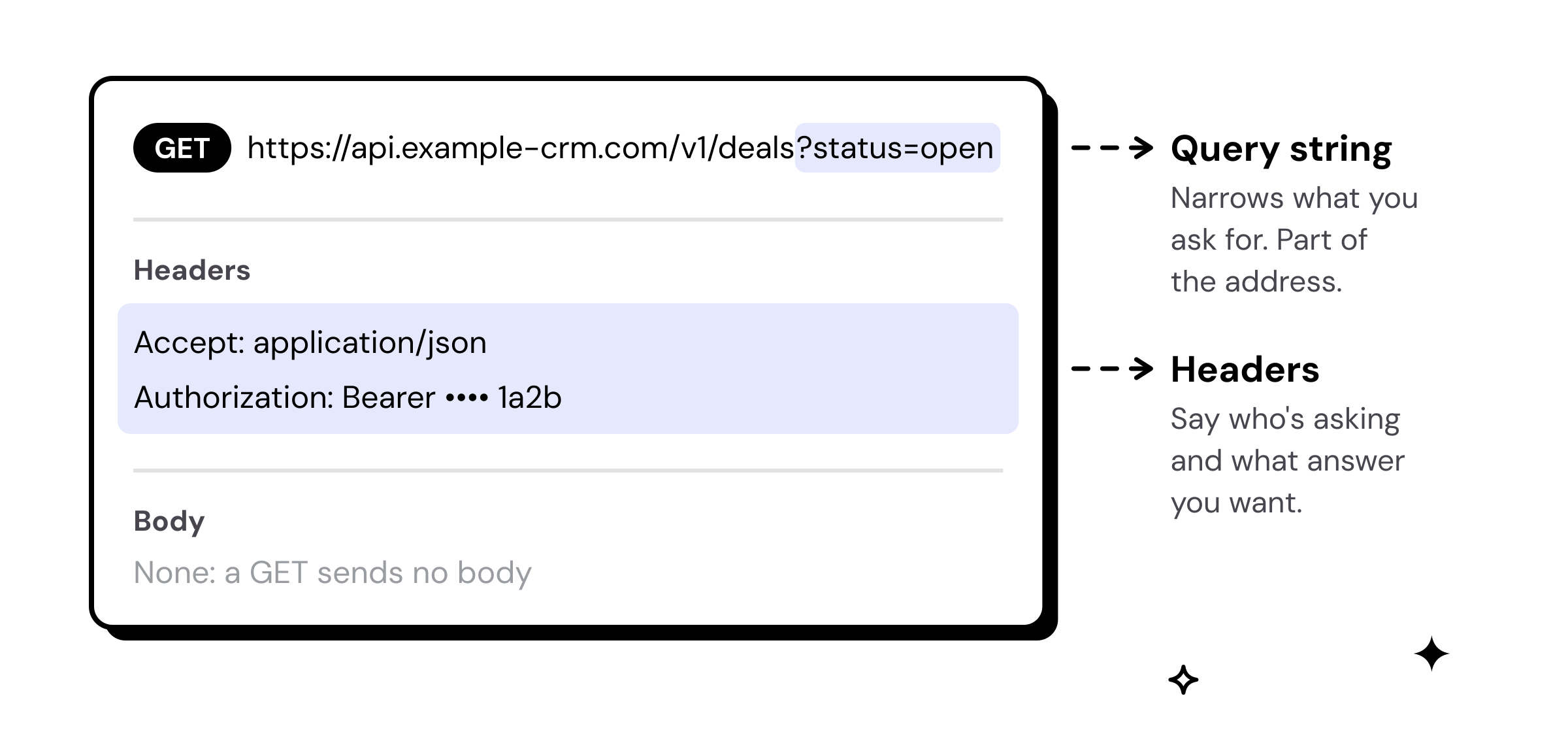
Query parameters are part of the address. They narrow what you're asking for: status=open, limit=50, date=2026-11-20. Because they're in the URL, they show up in logs and browser histories, so they're the wrong place for anything secret.
Headers travel beside the address. They describe the request itself: who's asking (Authorization), what format you want back (Accept: application/json), what format you're sending (Content-Type).
Where the API key goes
Most APIs want a key to know who's calling. Their documentation says where it goes, and it's one of these three:
- A custom header, often called
X-Api-Key. This is Drafta's default. - The
Authorizationheader, often asBearerfollowed by the key. Name the headerAuthorization, and typeBearer(with the space) before the key itself. - A query parameter, such as
api_keyorappid. Some older APIs only accept this.
In Drafta, the key has its own fields on the Integration's Credentials tab: API key, API key parameter (In the header or In the query string) and API key parameter name. Drafta adds the key to every request for you, so it never sits in a preset where it could be copied around.
Reading JSON
Nearly every modern API answers in JSON, short for JavaScript Object Notation. It looks technical, but it's built from just six kinds of value.
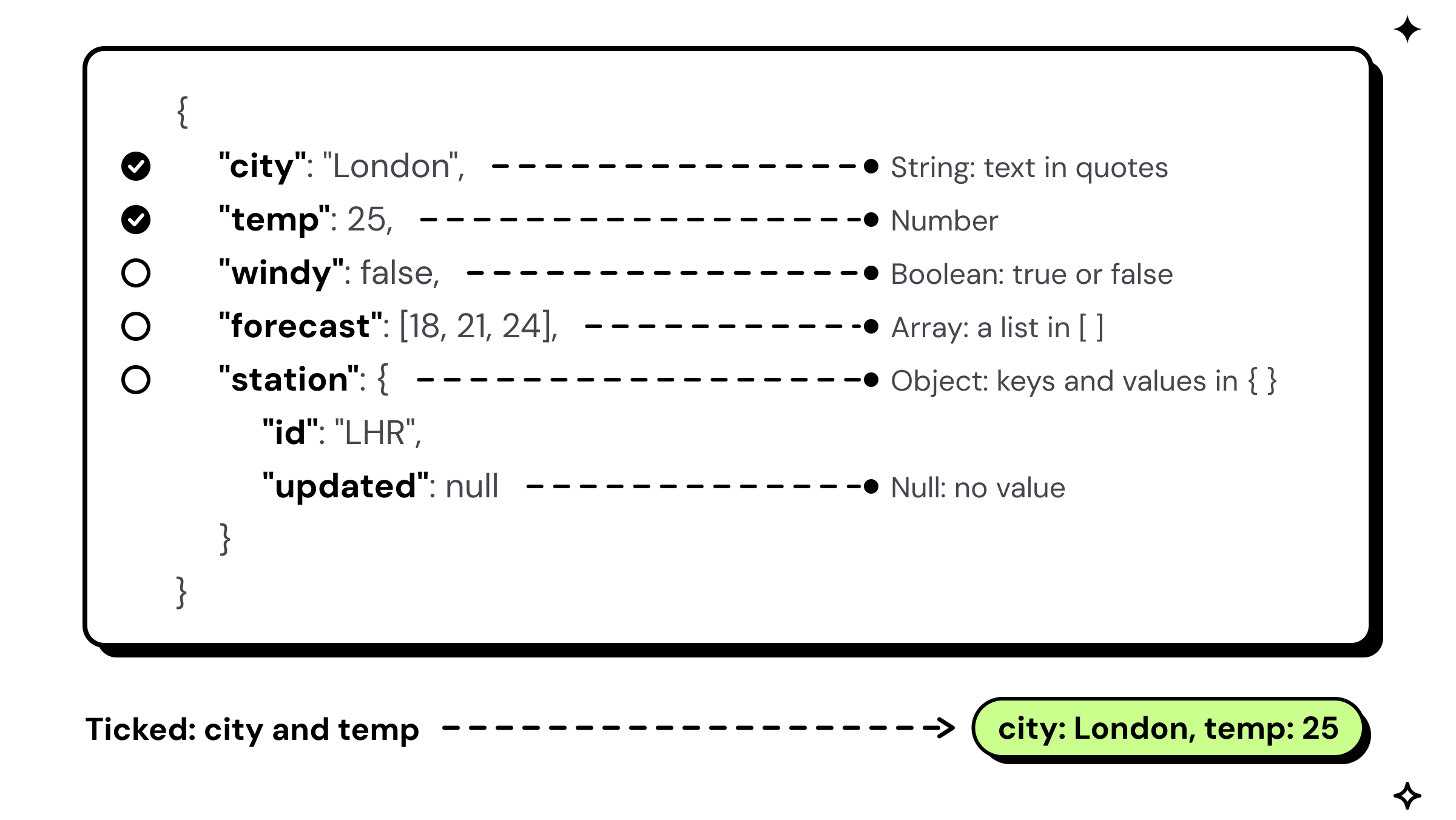
- Object, in
{ }: a set of"key": valuepairs, separated by commas. Keys are always in double quotes. - String: text, in double quotes.
"London" - Number: no quotes.
25,0.91198 - Boolean:
trueorfalse. - Array, in
[ ]: a list.[18, 21, 24] - Null: deliberately empty.
null
Objects and arrays can hold each other, as deep as the API likes. station above is an object inside an object. A response from a real CRM might be an object holding an array of deals, each deal an object holding a contact object. Read it the way you'd read an outline: indentation shows what belongs to what.
From JSON to a value in your document
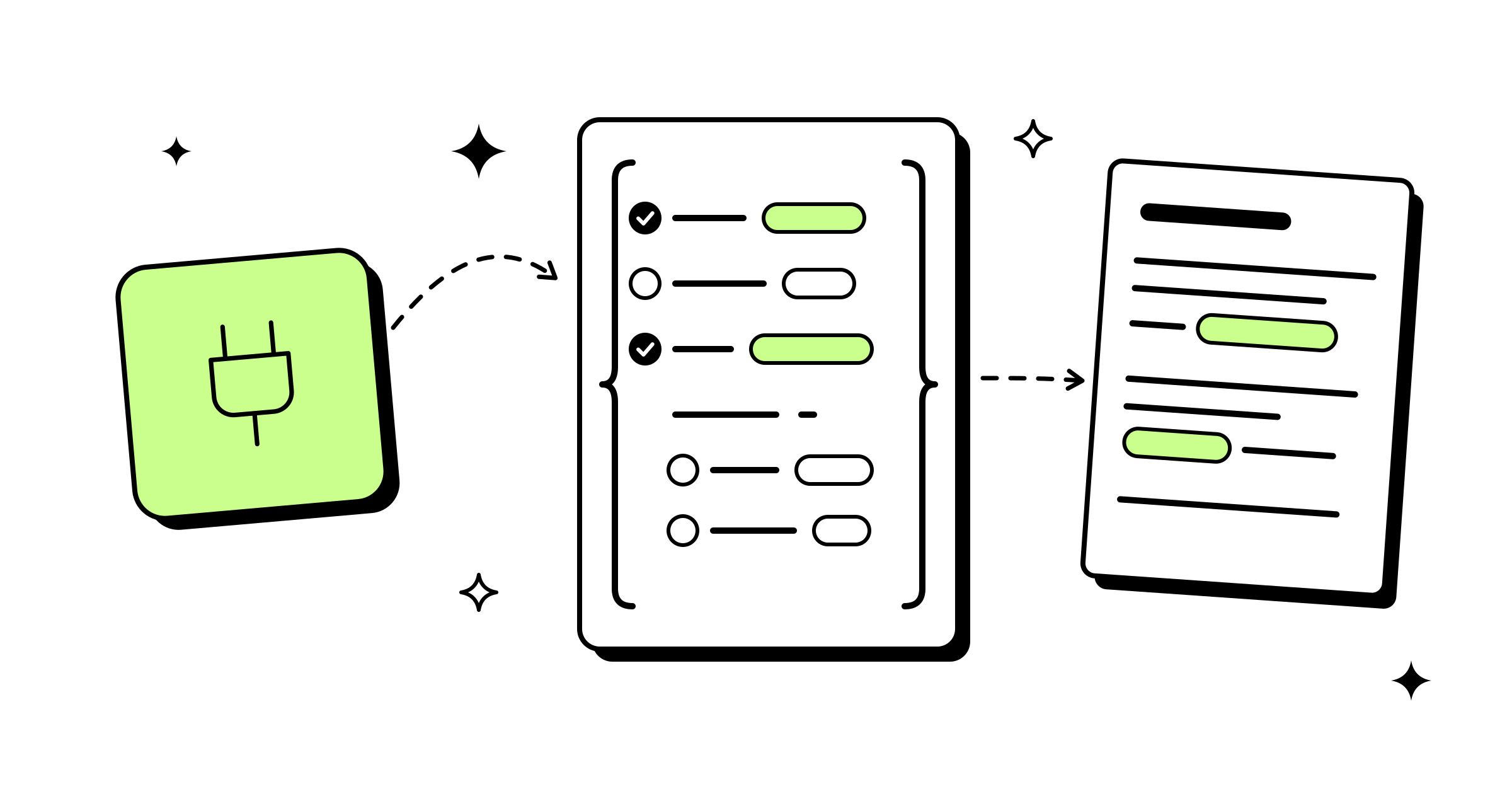
You don't write any code to use JSON in Drafta. Click Get data, and the response appears as a tree under Response content. Tick the keys you want, and the preview below shows the exact text that will land in your document:
- ticking
cityandtempgivescity: London, temp: 25; - ticking
stationgivesstation: (id: LHR), because a nested object's members go in brackets and thenullis skipped; - ticking
forecastgivesforecast: (18, 21, 24). An array stays one value: it doesn't start a batch.
Every value keeps its key as a label, so the document always says what each number is. When you want a sentence instead of key: value pairs, put an AI handler on the placeholder. The example at the end does exactly that.
How Drafta makes the call
The call doesn't come from your browser. When you click Get data or generate a document, Drafta sends the request from its own servers. That has a few consequences worth knowing:
- The API doesn't need to allow Drafta's website. Browser rules about which sites may call an API (CORS) don't apply to a server.
- Your key stays secret. It's encrypted when you save it and nobody can read it back, you included. Drafta shows only its last four characters, with Remove key and Replace.
- A new host clears the key. Change the URL to a different server and the key is removed, so it's never sent somewhere you didn't enter it for.
- There are limits. Public
https://addresses only, an answer within 10 seconds, at most 1 MB, and the answer must be JSON. - The data is live. Placeholders call the API each time you generate, so a document generated today shows today's data.
Presets: one Integration, many questions
An Integration holds the connection: URL, method and key. Its HTTP parameters tab holds presets: named sets of headers, query rows, a body for POST, and the keys you ticked in the response. One Integration to your CRM can carry Open deals, Won this month and Lost this month as three presets.
On a placeholder, you pick the Integration, then one or more presets. One preset gives one value. Several presets give one document each, in the order you ticked them.
A real example: quotes with today's exchange rate
You quote in US dollars, and your European clients want to know what that means in euros. Here's how to put today's official exchange rate into every quote, with no copying from a currency website.
We'll use Frankfurter , a free, open-source exchange-rate API built on data from central banks. It needs no account and no key, so you can build this right now.
1. Create the Integration
- In the sidebar, open Integrations and click New integration. Name it
Exchange rates. - On the Credentials tab, set the URL to
https://api.frankfurter.dev/v2/rate/USD/EURand the Method toGET. - Leave API key empty. Frankfurter doesn't need one. For an API that does, this is where it goes.
2. Add a preset and pick the data
- Open HTTP parameters and click Add parameter. Click its name and rename it
Latest rate. - This request needs no headers and no query rows. Click Get data. The response comes back as a small object:
{
	"date": "2026-11-24",
	"base": "USD",
	"quote": "EUR",
	"rate": 0.91198
}
- A new preset starts with every top-level key ticked. You know the currencies already, so untick
baseandquote. The preview now readsdate: 2026-11-24, rate: 0.91198, with whatever today's date and rate are.
3. A second preset for a fixed date
Contracts often fix the rate on the day they were signed. Click Duplicate at the bottom of Latest rate, rename the copy Rate on signing, and add one row under Query string: name date, value 2026-11-20. Get data now asks for …/v2/rate/USD/EUR?date=2026-11-20 and returns that day's rate, 0.91012.
Spell parameter names exactly as the documentation does. Type data instead of date and Frankfurter refuses the request: Drafta shows The API answered HTTP 422 (Unprocessable Entity).
4. Put it in the quote
In your Price quote template, insert a placeholder named Exchange rate where the currency note belongs. Set its source to Integration, pick Exchange rates, and tick the Latest rate preset.
On its own, the placeholder inserts date: 2026-11-24, rate: 0.91198. Accurate, but not how a quote talks. So attach an AI handler with a custom prompt:
Turn this exchange rate into one sentence for a price quote:
"All prices are in US dollars. At the official rate of <date>,
1 USD = <rate> EUR." Round the rate to four decimal places and
write the date in full, like 24 November 2026.
Click Preview to check the result on today's real data. You should get a line like "All prices are in US dollars. At the official rate of 24 November 2026, 1 USD = 0.9120 EUR."
5. Generate a quote for every client
Point the quote's other placeholders, Client name and Fee (USD), at the columns of your Clients Dataset, and generate. You get one quote per client, and the rate is fetched as you generate, so every quote in the batch carries the same, current rate. Next month, generate again: new rate, no edits.
One thing to avoid: don't tick both presets on a placeholder in a batch that comes from a Dataset column. Their values pair up with the Dataset rows by position, so the first client gets the latest rate, the second the signing-day rate, and so on. Make one placeholder per preset instead.
Your own API next
Swap Frankfurter for the system that holds your data, and the steps stay the same: the URL and key on Credentials, one preset per question, tick the keys you need, place the placeholder. Before you connect it:
- Find the endpoint's URL and method in the provider's API reference
- Create a read-only key that can see only what your documents need
- Check where the key goes: which header or query parameter, and whether it needs
Bearer - Try the call in the provider's own API console, so you know what a good response looks like
Every Integration setting is described in the Data sources guide , with a checklist for when a call comes back empty.