Two layers, two jobs
Drafta puts AI in two places, and they do different work:
- Magic Writer lives in the editor. You use it while you design a template or edit a document, and it writes static text that becomes part of the page.
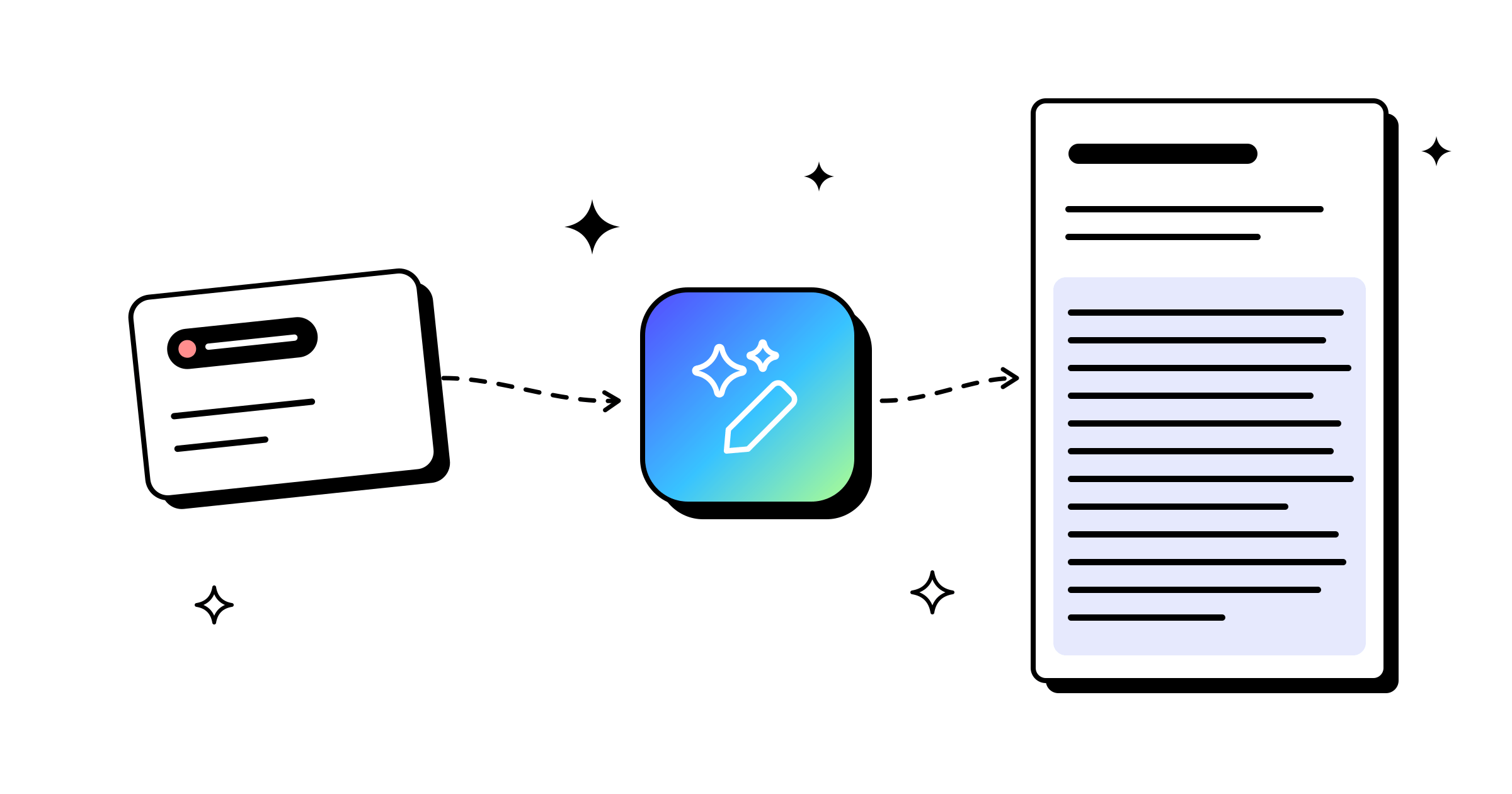
- AI handlers live on placeholders. They run while documents are generated, and turn a placeholder's raw value into the text that lands in each document.
Both read the template's AI context, its standing brief on tone, terminology and hard rules, and both see the text that comes before them in the document. So a closing paragraph knows what the introduction said, and the document reads as one piece instead of a patchwork. It also means order matters: what comes earlier shapes what the AI writes later.
Magic Writer
Click the Magic Writer button in the editor toolbar. At the top there's a prompt field for your own instruction; below it, one-click presets.
Preset actions
- Continue Text writes the next part from where your cursor is.
- Expand, Shorten, Rewrite and Summarize work on the text you've selected.
- Fix Spelling/Grammar corrects the selection without changing its meaning or style.
With nothing selected, the selection-based presets are greyed out. Whatever Magic Writer writes is ordinary text: edit it like anything you typed yourself.
AI handlers
Without a handler, a placeholder inserts its value verbatim: Senior Backend Engineer. Attach a handler with the prompt "Use the full job title and briefly list the responsibilities of this role", and the same placeholder inserts a readable sentence about what the role involves. Same data, very different output.
Setting one up
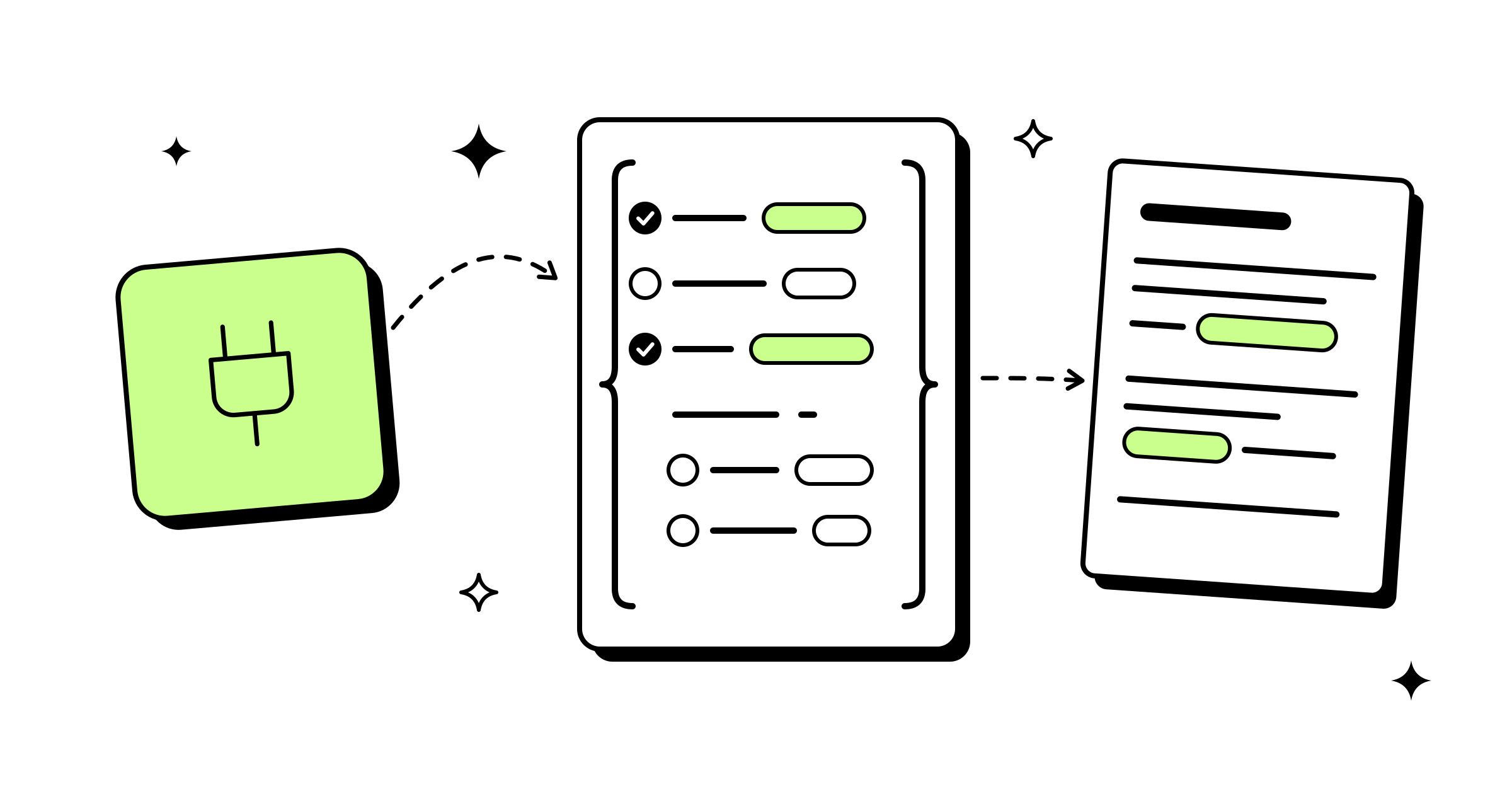
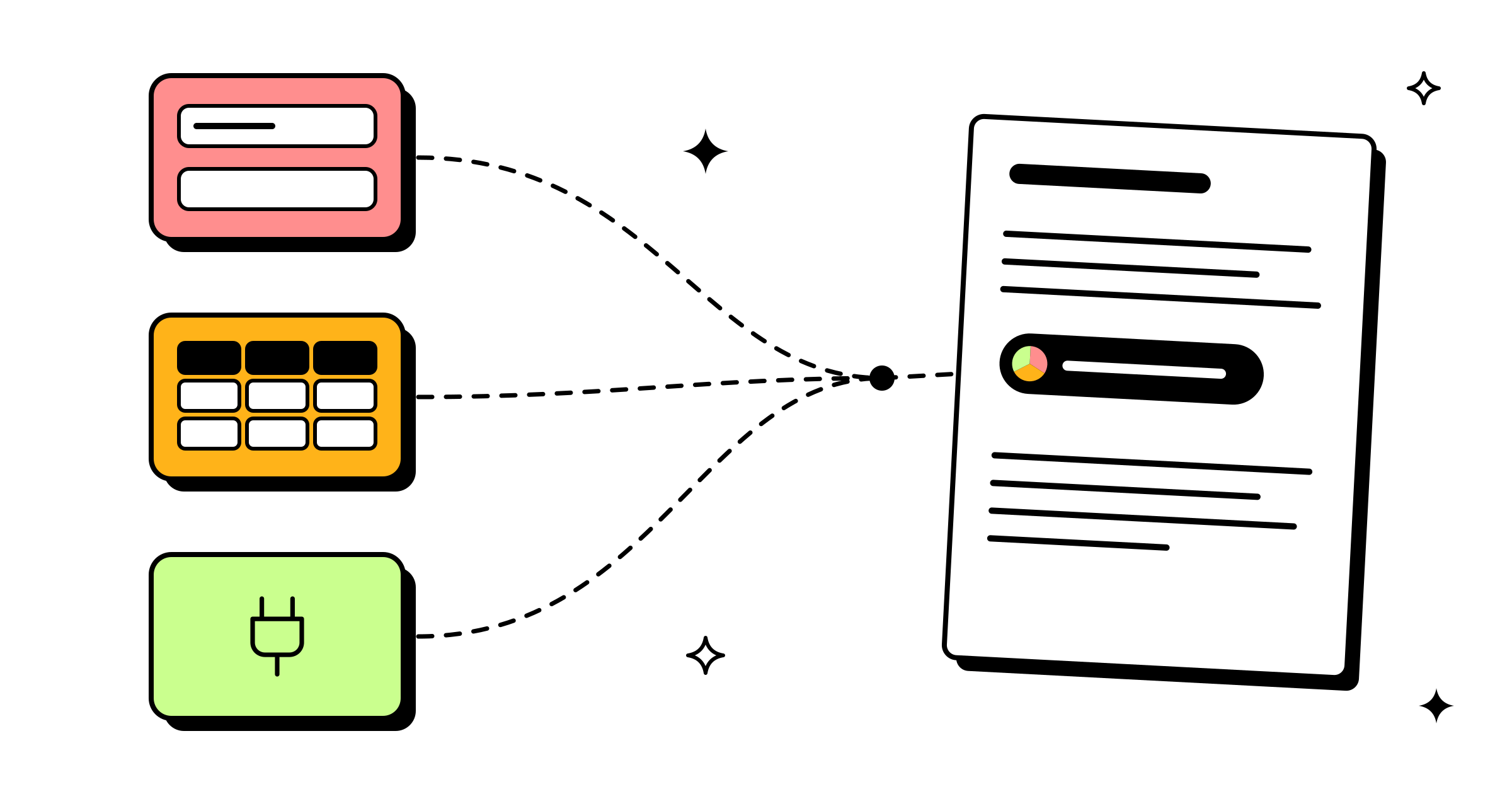
- Open the placeholder's settings. Any source works: Form, Dataset or Integration.
- Attach an AI handler. Its AI button gets a gradient dot to show it's on.
- Pick a preset action, or write a custom prompt that tells the AI what to do with the value.
- Click Preview to see the result on real data before generating.
- Optionally, turn on Locked.
Template defaults and one-off changes
The handler you set in the template is the default for everyone who generates from it. In the Generation form, you can still change it for that generation only, for a shorter version or a warmer tone for one client, and the template stays as it was. Turn on Locked in the template and the handler can't be changed or removed there; it can still be opened and previewed.
Handlers in a batch
When a placeholder resolves to many values, such as a Dataset column of 40 clients, the handler runs once for each. Forty rows in, forty individually written texts out, each from its value and its document's context.
Choosing a model
In Settings, pick a model for Magic Writer and one for AI handlers. Drafta supports models from Anthropic, OpenAI and Google. There's no universal winner, so run the same handler Preview under two models on your own templates and compare. Ten minutes of testing beats any benchmark, and a good AI context matters more than the model you pick.
Use it responsibly
AI output can be confidently wrong. It may invent facts, numbers or citations, leave things out, or carry bias, and it isn't professional advice.
You are responsible for reviewing every generated document, with qualified professionals where the subject calls for them, before relying on it or sending it to anyone.
What works in practice:
- Preview handlers before generating, and read Magic Writer's text before moving on.
- Forbid invention in the AI context ("never invent numbers, dates or party names") and deliver the real facts through placeholders.
- Scale review to the stakes. A newsletter draft needs a quick read; a client contract needs a professional, every time.
- Spot-check batches. A handler's mistake repeats at batch speed.
More on both features is in the AI Features guide .